Editor’s note, September 2026. This post was published in April 2023 and some product details have changed since. Dremio Arctic is now Dremio’s Open Catalog, which is built on Apache Polaris rather than Nessie. The screenshots and product names below reflect the interface as it was at the time of writing. For how the current catalog layer works, see Apache Polaris Architecture Explained.
This article has been revised and updated from its original version published in 2022 to reflect the latest Dremio and Apache Iceberg capabilities.
CSV files remain the most common format for data exchange, but they lack schema enforcement, columnar storage efficiency, and ACID transactions. Converting CSV data to Apache Iceberg tables transforms flat files into a fully governed, queryable, and optimized dataset with time travel, hidden partitioning, and column-level statistics for fast queries.
Enterprise organizations deal with CSV data constantly, vendor data feeds, financial exports, CRM dumps, regulatory filings, and IoT sensor logs all arrive as CSV. Traditional approaches to CSV ingestion involve complex ETL pipelines with tools like Apache Spark, Apache NiFi, or custom Python scripts. These pipelines require dedicated engineering resources, compute clusters, and operational oversight. For many teams, the pipeline code becomes more complex than the actual analytics.
Dremio eliminates this complexity entirely. As a unified lakehouse platform built on Apache Iceberg, Dremio can query CSV files directly from cloud object storage and convert them to Iceberg tables using standard SQL, no code, no cluster management, no ETL frameworks. Combined with Dremio's OPTIMIZE TABLE for compaction, VACUUM TABLE for snapshot management, and Reflections for query acceleration, the entire CSV-to-analytics pipeline reduces to a handful of SQL statements.
This guide walks through the complete process, from connecting to your CSV data to optimizing the resulting Iceberg table for production analytics.
The Traditional Approach: Spark-Based CSV Conversion
Before Dremio simplified CSV-to-Iceberg conversion, the standard approach used Apache Spark: For official documentation, refer to the Dremio SQL documentation.
This approach requires a running Spark cluster, PySpark knowledge, and Iceberg dependency management (matching the correct iceberg-spark-runtime JAR to your Spark version). For teams already running Spark, this works well. For teams who want a simpler path, Dremio's SQL-based approach eliminates all of this complexity.
When to use Spark: You have an existing Spark cluster, need custom PySpark transformations during conversion, or are ingesting from non-standard file formats that Dremio doesn't support natively.
When to use Dremio: You want the simplest path from CSV to analytics-ready Iceberg tables. Dremio handles schema inference, CTAS conversion, post-conversion compaction, and query acceleration through Reflections, all through SQL. No cluster management, no dependency conflicts, no PySpark debugging.
For organizations evaluating both approaches, the Dremio path typically reduces time-to-analytics by 80% compared to building custom Spark pipelines. The saved engineering time can be redirected toward higher-value analytics work instead of pipeline maintenance.
Navigate to the CSV file in the Dremio source tree
Dremio auto-detects the delimiter, header row, and basic column types
From Local/NAS Storage
Configure a NAS source in Dremio pointing to the directory containing CSV files
Browse and select the CSV file
CSV Format Options
When connecting, Dremio allows you to configure:
Delimiter: Comma, tab, pipe, or custom character
Header extraction: Use first row as column names
Column type inference: Auto-detect INT, FLOAT, VARCHAR, DATE, etc.
Null value handling: Specify strings that represent NULL
Step 2: Preview and Validate
Before converting, preview the data to ensure correct parsing:
-- Preview the CSV data through Dremio
SELECT * FROM object_storage."data/customers.csv" LIMIT 100;

-- Check data types
SELECT
  TYPEOF(customer_id) as id_type,
  TYPEOF(name) as name_type,
  TYPEOF(created_date) as date_type
FROM object_storage."data/customers.csv" LIMIT 1;
If types need adjustment, apply conversions during the CTAS:
-- Cast types during conversion
SELECT
  CAST(customer_id AS INT) as customer_id,
  name,
  CAST(created_date AS DATE) as created_date,
  CAST(total_spend AS DECIMAL(10,2)) as total_spend
FROM object_storage."data/customers.csv";
Step 3: Create the Iceberg Table
Use Dremio's CREATE TABLE AS SELECT (CTAS) to convert CSV to Iceberg:
-- Simple conversion
CREATE TABLE iceberg_catalog.db.customers AS
SELECT * FROM object_storage."data/customers.csv";

-- With type casting and partitioning
CREATE TABLE iceberg_catalog.db.orders
PARTITION BY (month(order_date))
AS
SELECT
  CAST(order_id AS BIGINT) as order_id,
  CAST(customer_id AS INT) as customer_id,
  CAST(order_date AS DATE) as order_date,
  CAST(amount AS DECIMAL(12,2)) as amount,
  product_category,
  region
FROM object_storage."data/orders.csv";
Dremio writes the data as Parquet files within the Iceberg table structure, automatically creating manifest files, metadata files, and column-level statistics.
Step 4: Incremental CSV Loading
For recurring CSV data (daily exports, vendor feeds), use INSERT INTO to append new data:
-- Append new CSV data to existing Iceberg table
INSERT INTO iceberg_catalog.db.orders
SELECT
  CAST(order_id AS BIGINT) as order_id,
  CAST(customer_id AS INT) as customer_id,
  CAST(order_date AS DATE) as order_date,
  CAST(amount AS DECIMAL(12,2)) as amount,
  product_category,
  region
FROM object_storage."data/orders_2024_03.csv";
Each INSERT creates a new snapshot, enabling time travel to view the table state before and after each load.
Step 5: Optimize the Iceberg Table
After loading, optimize for query performance:
-- Compact small files into larger, optimally sized files
OPTIMIZE TABLE iceberg_catalog.db.orders;

-- Clean up old snapshots from completed loads
VACUUM TABLE iceberg_catalog.db.orders
EXPIRE SNAPSHOTS older_than = '2024-01-01 00:00:00';
The OPTIMIZE TABLE command handles compaction, merging small files from individual CSV loads into larger, more performant Parquet files.
Step 6: Accelerate with Reflections
For frequently queried datasets, create Dremio Reflections to achieve sub-second query performance:
-- Create an aggregation Reflection for common BI queries
ALTER DATASET iceberg_catalog.db.orders
CREATE AGGREGATE REFLECTION "orders_agg"
USING DIMENSIONS (region, product_category, month(order_date))
MEASURES (SUM(amount), COUNT(*));
Reflections are stored as Iceberg tables and automatically refresh when the source data changes through Live Reflections.
Handling Large CSV Files and Complex Scenarios
Multi-File CSV Ingestion
When CSV data spans multiple files (partitioned by date, region, etc.), use wildcard patterns:
-- Ingest all CSV files matching a pattern
CREATE TABLE iceberg_catalog.db.all_orders AS
SELECT * FROM object_storage."data/orders_*.csv";
Schema Mismatch Handling
When CSV files have inconsistent schemas (missing columns, extra columns), use explicit column selection:
-- Handle schema differences with COALESCE and defaults
CREATE TABLE iceberg_catalog.db.customers AS
SELECT
  customer_id,
  name,
  COALESCE(email, 'unknown') as email,
  COALESCE(phone, '') as phone
FROM object_storage."data/customers_v2.csv";
Data Quality Validation
Add validation during conversion to catch data issues:
-- Validate data during conversion
CREATE TABLE iceberg_catalog.db.validated_orders AS
SELECT *
FROM object_storage."data/orders.csv"
WHERE
  order_id IS NOT NULL
  AND amount > 0
  AND order_date >= '2020-01-01';
Real-World Pipeline: Daily CSV Ingestion
A common enterprise pattern for converting CSV exports into Iceberg:
Vendor drops CSV to S3 bucket daily
Dremio detects new file through source refresh
INSERT INTO appends new data with type casting
OPTIMIZE TABLE runs nightly to compact small files
VACUUM TABLE runs weekly to expire old snapshots
Reflections provide sub-second dashboard queries
This pipeline replaces complex Spark/Airflow ETL jobs with simple SQL statements executed through Dremio's scheduler or a lightweight orchestrator.
Dremio's Modern Ingestion Methods for CSV Data
Beyond CTAS and INSERT INTO, Dremio provides three additional ingestion methods that further simplify CSV-to-Iceberg workflows:
The COPY INTO command loads CSV files from a configured source directly into an existing Iceberg table. Unlike CTAS (which creates a new table), COPY INTO loads into a pre-existing table with a defined schema:
-- Load a single CSV file into an existing Iceberg table
COPY INTO nessie.db.orders
FROM '@s3_source/data-landing/orders/'
FILES ('orders_march_2024.csv')
FILE_FORMAT 'csv'
(EXTRACT_HEADER 'true', FIELD_DELIMITER ',', ON_ERROR 'continue');
Key COPY INTO features for CSV:
Option
Purpose
Example
EXTRACT_HEADER
Use first row as column names
'true'
FIELD_DELIMITER
Set column separator
',', '\t', `'
ON_ERROR
Error handling strategy
'abort', 'continue', 'skip_file'
NULL_IF
Strings to treat as NULL
('None', 'NA', '')
DATE_FORMAT
Custom date parsing
'DD-MM-YYYY'
TRIM_SPACE
Strip whitespace from values
'true'
REGEX
Match files by pattern
'.*.csv'
-- Load multiple CSV files matching a pattern
COPY INTO nessie.db.orders
FROM '@s3_source/data-landing/daily-exports/'
REGEX '.*.csv'
(EXTRACT_HEADER 'true', ON_ERROR 'skip_file', NULL_IF ('None', 'NA'));
Column matching behavior: Dremio automatically matches CSV columns to Iceberg table columns by name (case-insensitive). Extra CSV columns are ignored; missing table columns are filled with NULL.
For ongoing CSV data feeds, CREATE PIPE sets up an event-driven auto-ingest pipeline that automatically loads new CSV files as they arrive in S3:
-- Create an auto-ingest pipe for continuous CSV loading
CREATE PIPE csv_orders_pipe
AS COPY INTO nessie.db.orders
FROM '@s3_source/data-landing/csv-drops/'
FILE_FORMAT 'csv'
(EXTRACT_HEADER 'true', ON_ERROR 'continue');
How it works:
File arrives in the configured S3 location
S3 sends event notification to an AWS SQS queue
Dremio's pipe monitors the SQS queue for new file events
Auto-ingest triggers a COPY INTO operation for each new file
Deduplication ensures each file is loaded exactly once
This eliminates the need for Airflow, cron jobs, or any external orchestrator for routine CSV ingestion. The pipe runs continuously and handles failures, retries, and deduplication automatically.
Method 3: Upload, Drag-and-Drop CSV to Iceberg
For ad-hoc CSV uploads (up to 500 MB), Dremio Cloud's UI provides direct file upload:
Navigate to Datasets in the Dremio UI
Click Add Data in the bottom-left corner
Drag and drop your CSV file or click to browse
Dremio automatically creates an Iceberg table from the CSV
This is ideal for analysts who need to quickly explore a CSV file without writing any SQL. The uploaded file is immediately queryable as a fully governed Iceberg table with time travel, schema evolution, and ACID support.
Choosing the Right Ingestion Method
Method
Best For
Setup Complexity
Automation
CTAS
Initial table creation from CSV
None (SQL)
Manual
INSERT INTO
Scheduled batch appends
Minimal
Script/schedule
COPY INTO
Bulk loads with error handling
Minimal (SQL)
Manual or scripted
CREATE PIPE
Continuous auto-ingest from S3
Medium (SQS setup)
Fully automatic
Upload
Ad-hoc exploration (≤500 MB)
None (UI click)
Manual
What happens if the CSV schema changes?
Iceberg supports schema evolution. If a new CSV has additional columns, use ALTER TABLE ... ADD COLUMNS before the INSERT. Iceberg never drops columns, old data files continue to return NULL for newly added columns.
How does compression compare between CSV and Iceberg?
A typical CSV file converts to Parquet (the storage format within Iceberg) at a 3-10x compression ratio. A 10 GB CSV dataset typically occupies 1-3 GB as an Iceberg table with Zstd compression.
Can I convert CSV to Iceberg without Dremio?
Yes, using Spark or Python/PyIceberg. However, Dremio provides the simplest experience, no code, no cluster management, just SQL.
Advanced Transformation Patterns
Deduplication During Conversion
CSV exports often contain duplicate rows. Remove them during conversion:
CREATE TABLE iceberg_catalog.db.customers AS
SELECT DISTINCT ON (customer_id) *
FROM object_storage."data/customers.csv"
ORDER BY customer_id, updated_date DESC;
Derived Columns and Enrichment
Add calculated columns during conversion to enrich the Iceberg table:
CREATE TABLE iceberg_catalog.db.enriched_orders AS
SELECT
  *,
  EXTRACT(YEAR FROM order_date) as order_year,
  EXTRACT(QUARTER FROM order_date) as order_quarter,
  CASE
    WHEN amount > 1000 THEN 'high_value'
    WHEN amount > 100 THEN 'medium_value'
    ELSE 'low_value'
  END as order_tier
FROM object_storage."data/orders.csv";
Multiple CSV Sources into One Table
Consolidate CSV files from different sources into a unified Iceberg table:
CREATE TABLE iceberg_catalog.db.all_customers AS
SELECT *, 'crm' as source FROM object_storage."crm/customers.csv"
UNION ALL
SELECT *, 'ecommerce' as source FROM object_storage."ecommerce/customers.csv"
UNION ALL
SELECT *, 'support' as source FROM object_storage."support/customers.csv";
Building a Data Quality Framework
Create Dremio views that act as a data quality layer between raw CSV and curated Iceberg tables:
-- Raw view: direct CSV access
CREATE VIEW staging.raw_orders AS
SELECT * FROM object_storage."data/orders.csv";

-- Quality view: validated and typed
CREATE VIEW staging.quality_orders AS
SELECT
  CAST(order_id AS BIGINT) as order_id,
  CAST(customer_id AS INT) as customer_id,
  CAST(order_date AS DATE) as order_date,
  CAST(amount AS DECIMAL(12,2)) as amount
FROM staging.raw_orders
WHERE order_id IS NOT NULL AND amount > 0;

-- Curated table: final Iceberg destination
INSERT INTO iceberg_catalog.db.orders
SELECT * FROM staging.quality_orders
WHERE order_date >= CURRENT_DATE - INTERVAL '1' DAY;
This layered approach separates raw ingestion, quality validation, and curated storage, each managed through Dremio SQL.
Automating CSV-to-Iceberg Pipelines
Dremio Query Scheduling
Use Dremio's job scheduling or integrate with external orchestrators to automate daily CSV ingestion:
Apache Airflow: Call Dremio's REST API to execute INSERT statements
dbt: Use the dbt-dremio adapter to model transformations as dbt models
Cron jobs: Schedule Dremio SQL scripts via the Dremio JDBC/ODBC driver
Monitoring Ingestion Health
After each load, verify data integrity:
-- Check row counts by load date
SELECT
  DATE_TRUNC('day', order_date) as load_date,
  COUNT(*) as rows_loaded
FROM iceberg_catalog.db.orders
GROUP BY load_date
ORDER BY load_date DESC
LIMIT 10;
If a load looks wrong, use rollback to revert to the pre-load state, or use time travel to compare before and after.
Frequently Asked Questions
What happens to my original CSV files after conversion?
The original CSV files remain untouched on storage. The conversion creates new Parquet-based Iceberg data files alongside the original CSVs. You can verify the new Iceberg table is correct, then delete the original CSV files when ready. This approach eliminates risk during the migration process.
Can I convert CSV files with inconsistent schemas?
Iceberg requires a defined schema for each table. If your CSV files have inconsistent column counts or types, you need to normalize them during ingestion. Dremio's COPY INTO command handles type conversion automatically, applying the target table's schema during loading. For files with missing columns, null values are inserted.
How does Dremio handle CSV files with special characters or custom delimiters?
Dremio supports configurable CSV parsing options including custom delimiters, quote characters, escape characters, and header row handling. Specify these options in the file format configuration when running COPY INTO or when defining the source. The most common issue is encoding mismatches, which you can resolve by specifying the correct character encoding.
Apache Iceberg is an open table format that enables robust, affordable, and quick analytics on the data lakehouse and is poised to change the data industry in ways we can only begin to imagine. Check out our Apache Iceberg 101 course to learn all the nuts and bolts about Iceberg. The bottom line: Converting your data into Iceberg tables allows you to run performant analytics on the data in your data storage without having to duplicate it in a data warehouse, and keeps the data open so a variety of tools can work with it.
This article explores how you can use Dremio Cloud to easily convert CSV files into an Iceberg table, allowing you to have more performant queries, run DML transactions, and time-travel your dataset directly from your data lakehouse storage.
This article uses a single CSV file for simplicity’s sake, but you can follow the same steps for a dataset consisting of multiple CSV files.
Summary of the steps we’ll take
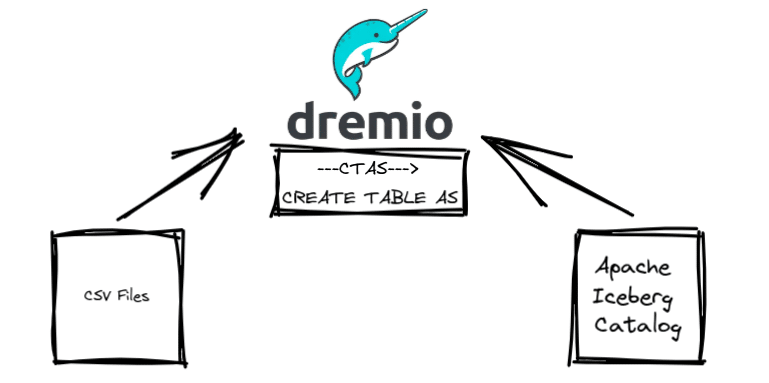
The Dremio Cloud platform is perfect for this type of task because it acts like an access layer that any compatible source can connect to, allowing you to access data from multiple sources like object storage where your CSV, JSON, Parquet, and other files may be stored, relational databases, or a metastore you are using to catalog your Apache Iceberg tables. Dremio can also run DML operations on Iceberg tables, so you can take advantage of these features to easily convert data from any source into an Iceberg table.
You just need to:
Connect your Iceberg catalog
Upload your CSV file or connect a source with a CSV file (like S3)
CTAS the CSV file into a new Iceberg table in your catalog
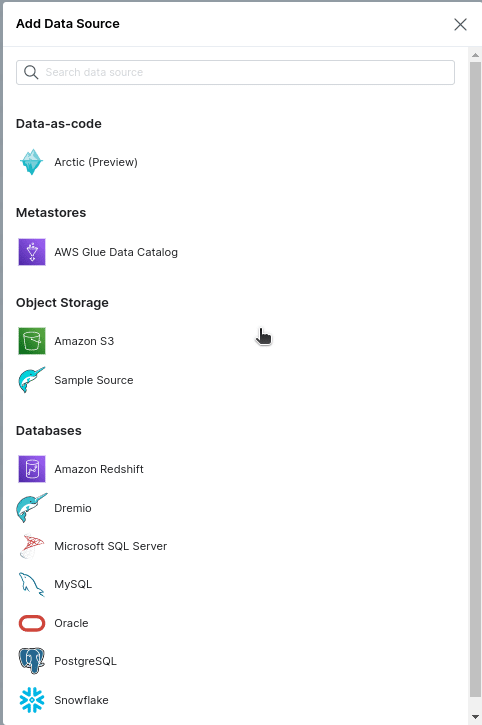
You currently have three choices for your Iceberg catalog when using Dremio Cloud to write to Iceberg tables: AWS Glue, AWS S3, and Project Nessie. These can all be connected by clicking the “Add Source” button in the bottom left corner of the Dremio UI and selecting the source you want to connect.
If using an AWS Glue source:
In the source settings under “Advanced Options” add a property called “hive.metastore.warehouse.dir”. This will determine the S3 folder any Iceberg tables you create in the catalog will be written to.
If using an S3 source:
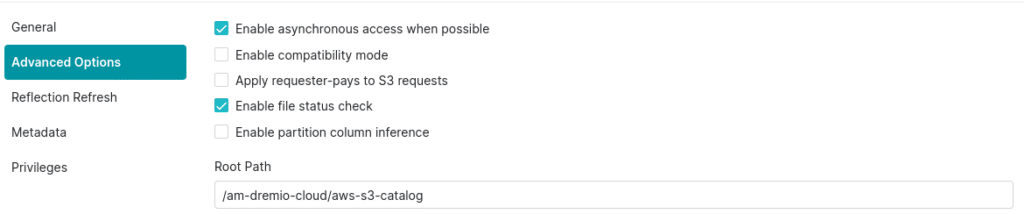
In the source settings under “Advanced Options” make sure to set the root path to the S3 directory you want the source to default to, this will be where Iceberg tables will be created in this catalog.
If using a Dremio Arctic source:
If using Dremio’s Arctic catalog as your Apache Iceberg catalog a bucket associated with your Dremio Sonar’s project-associated cloud will be assigned automatically (this can be changed in the settings of the source if you want).
Now you have two approaches you can use going forward to load your CSV data into an Apache Iceberg table:
CTAS – The CSV must be a dataset in your Dremio Account can then create a new table via a “CREATE TABLE AS” statement from that CSV file. This is great if the table does not yet already exist.
COPY INTO – You tell Dremio to copy the contents of CSV/JSON files into an existing Apache Iceberg table.
Step 3 - Load our CSV data
There are two ways to bring a CSV file into Dremio. You can either connect a cloud object storage source like S3 that has CSV files in it or you can upload the file directly into your Dremio account.
To keep it simple, if you click on “add source” you’ll see a “Sample Source” under the object storage category that has all sorts of data you can use for demonstration.
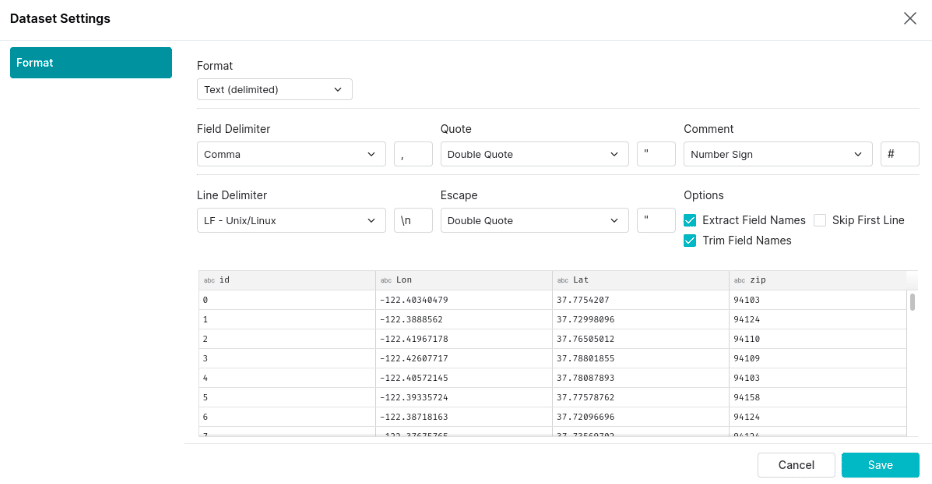
You should now have a source called “Samples”. There is a CSV “zip_lookup.csv” in this sample source that you will want to promote to a dataset. To do so click on the “Format File” button.
Then make sure to select “extra field names” and set the line delimiter to Unix and promote the file.
Click save, and you are ready to proceed.
Step 4 - Converting a CSV file into an Iceberg table
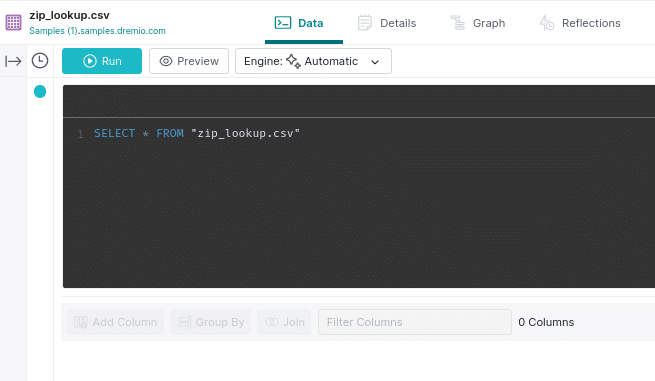
After formatting the CSV file into a dataset it should automatically bring you to this dataset in the UI. When viewing the dataset you’ll see the SQL Editor for editing and running SQL statements, along with the following options:
Data – This is the current screen with the SQL Editor
Details – Here you can write and view documentation on the datasets wiki and other information
Graph – Here you can see a datasets lineage graph for where that dataset comes from within Dremio
Reflections – Here you can enable data reflections to further accelerate queries on a particular dataset
Click the “Run” button to run the “Select *” query and to see that your data was promoted correctly (all the column headings should be there).
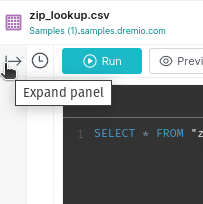
Off to the right, you’ll see an icon you can click to expand the panel that allows you to easily drag and drop your data into your queries, saving you time from having to type long namespaces.
Then you can use a CREATE TABLE AS statement to take the data from the CSV and write it to a new table in your desired Iceberg catalog.
CREATE TABLE awss3.zip_example
AS (SELECT* FROM Samples."samples.dremio.com"."zip_lookup.csv");
The image above uses an S3 source but when using any of the three catalogs, the namespace for your new table should look like the following:
Once you run the query, you’ll get a confirmation message that tells you where the table was written:
Step 5 - Using the COPY INTO approach
The COPY INTO command allows you to copy the contents of CSV, JSON, and other files into an Apache Iceberg table. This can be from a single file or a directory of files. This is particularly useful when adding data from multiple files or making multiple additions at different times since it is does not create a new table like the CTAS statement. COPY INTO will also take the values from CSV and coerce them into the schema of the target table, saving you from doing type conversions manually.
Let’s make an empty table with our desired schema.
CREATE TABLE awss3.zips (id INT, Lon DOUBLE, Lat DOUBLE, zip VARCHAR);
Then you can use the COPY INTO commands to copy the contents of the CSV into the existing table (make sure to specify the delimiter for this particular file).
COPY INTO awss3.zips
FROM '@Samples/samples.dremio.com/zip_lookup.csv'
FILE_FORMAT 'csv' (RECORD_DELIMITER 'n');
A couple of benefits of the COPY INTO approach:
It will use the schema of the destination table, whereas CTAS won’t know the desired schema and will make all fields a text field
You can add data from a single file as well as from a directory of files
The Iceberg Advantage
Now that your data is in an Iceberg table you can take advantage of full DML from Dremio to run updates, deletes, and upserts on your data.
UPDATE zips SET zip = '11111' WHERE zip = '94110'
DELETE FROM zips WHERE zip = '11111'
MERGE INTO zips z
USING (SELECT * FROM zips_staging) s
ON n.id = s.id
WHEN MATCH THEN UPDATE SET lat = s.lat, lon = s.lon, zip = s.zip
WHEN NOT MATCHED THEN INSERT (id, lat, lon, zip) VALUES (s.id, s.lat, s.lot, s.zip);
Conclusion
Not only can you query this new Iceberg table using your Dremio account but you can also work with this table using other tools like Apache Spark, Apache Flink, and any other tool that support Apache Iceberg and connect to your catalog, giving you open access to your data with metadata that enables smarter query planning to speed up performance and lower your cloud compute bill.
Keep learning
For a deeper treatment of the topics in this post, download Apache Iceberg: The Definitive Guide by Tomer Shiran, Jason Hughes, and Alex Merced, free from Dremio.
Intro to Dremio, Nessie, and Apache Iceberg on Your Laptop
Editor’s note, September 2026. This post was published in September 2023 and some product details have changed since. Nessie is still available and self-deployable under the Apache-2.0 licence, and it remains the clearest implementation of catalog-level branching. It is not an Apache Software Foundation project, and its development has slowed considerably. For how the current […]
Aug 16, 2023·Dremio Blog: News Highlights
5 Use Cases for the Dremio Lakehouse
With its capabilities in on-prem to cloud migration, data warehouse offload, data virtualization, upgrading data lakes and lakehouses, and building customer-facing analytics applications, Dremio provides the tools and functionalities to streamline operations and unlock the full potential of data assets.
Aug 24, 2026·Dremio Blog: Open Data Insights
Migrating to Apache Iceberg: Strategies for Every Source System
This is Part 15, the final article of a 15-part Apache Iceberg Masterclass. Part 14 covered hands-on Dremio Cloud. This article covers the three migration strategies and how to execute a zero-downtime migration using the view swap pattern. Most organizations do not start with Iceberg. They have years of data in Hive tables, data warehouses, CSV files, databases, […]