This article has been revised and updated from its original version published in 2022 to reflect the latest PyIceberg, PySpark, and Dremio capabilities.
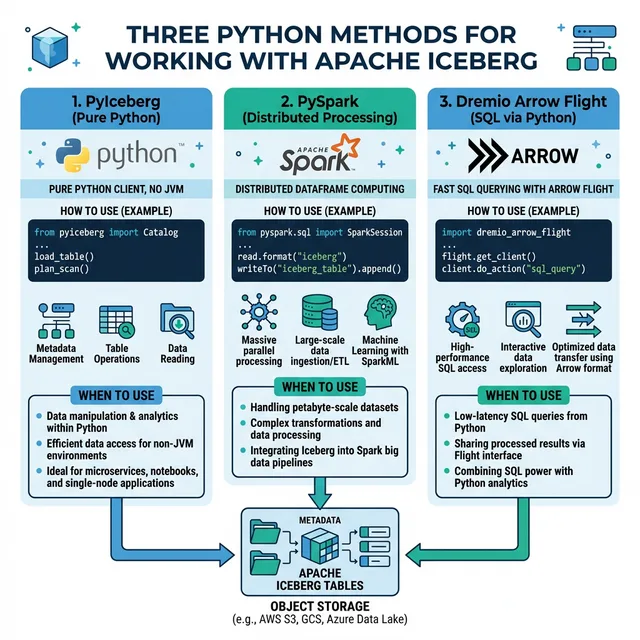
Python is the dominant language for data engineering, data science, and machine learning. With Apache Iceberg becoming the standard table format for data lakehouses, Python developers need reliable paths to read, write, and manage Iceberg tables. This guide covers the three primary approaches: PySpark for distributed processing, PyIceberg for native Python access, and Dremio's Arrow Flight connector for high-performance analytics integration.
Each approach serves different use cases. PySpark handles heavy-duty ETL at scale. PyIceberg provides lightweight, Spark-free table operations. Dremio's Arrow Flight connector delivers query results directly into Pandas or Polars DataFrames at maximum throughput. Understanding when to use each approach is key to building efficient data pipelines.
Dremio's Python ecosystem is particularly powerful: the Arrow Flight connector enables data scientists to query Iceberg tables from Jupyter notebooks with sub-second latency (thanks to Reflections), while ODBC/JDBC connectors integrate with any Python database library.
Approach 1: PySpark
PySpark provides the most mature and full-featured Python interface to Iceberg. It supports all Iceberg operations: DDL, DML, time travel, schema evolution, and table maintenance. For official documentation, refer to the PyIceberg documentation.
Try Dremio’s Interactive Demo
Explore this interactive demo and see how Dremio's Intelligent Lakehouse enables Agentic AI
# Read an Iceberg table into a DataFrame
df = spark.table("iceberg.db.orders")

# Write DataFrame as a new Iceberg table
df.writeTo("iceberg.db.orders_copy").create()

# Append data
df.writeTo("iceberg.db.orders").append()

# Overwrite with dynamic partition overwrite
df.writeTo("iceberg.db.orders").overwritePartitions()
Time Travel
# Read a specific snapshot
df = spark.read.option("snapshot-id", 123456789) \
    .format("iceberg").load("iceberg.db.orders")

# Read at a specific timestamp
df = spark.read.option("as-of-timestamp", "1710500000000") \
    .format("iceberg").load("iceberg.db.orders")
When you need full Iceberg DDL/DML support from Python
Approach 2: PyIceberg
PyIceberg is a standalone Python library for working with Iceberg tables without Spark. It connects directly to Iceberg catalogs and provides native Python APIs for table operations.
# List tables
tables = catalog.list_tables("db")

# Load a table
table = catalog.load_table("db.orders")

# Read into a Pandas DataFrame
df = table.scan().to_pandas()

# Read with filters (predicate pushdown)
from pyiceberg.expressions import GreaterThan
df = table.scan(
    row_filter=GreaterThan("amount", 100.0),
    selected_fields=("order_id", "amount", "region")
).to_pandas()

# Read into a Polars DataFrame
polars_df = table.scan().to_polars()

# Read into an Arrow Table (zero-copy)
arrow_table = table.scan().to_arrow()
Write Operations
import pyarrow as pa

# Append data from an Arrow table
arrow_data = pa.table({
    "order_id": [4, 5, 6],
    "amount": [199.99, 49.50, 349.00],
    "region": ["US-EAST", "US-WEST", "EU-WEST"]
})

table.append(arrow_data)

# Overwrite data
table.overwrite(arrow_data)
Schema and Partition Management
# View schema
print(table.schema())

# View partition spec
print(table.spec())

# View snapshot history
for snapshot in table.history():
    print(f"Snapshot {snapshot.snapshot_id} at {snapshot.timestamp_ms}")
When to Use PyIceberg
Lightweight table operations without Spark overhead
Data science notebooks (Jupyter) for quick exploration
CI/CD pipeline scripts for table management
When you want native Python with no JVM dependency
Approach 3: Dremio Arrow Flight / ODBC
Dremio provides high-performance Python connectivity through Apache Arrow Flight or ODBC:
Arrow Flight Connector
from dremio.flight import connect

# Connect to Dremio
conn = connect("grpc+tls://data.dremio.cloud:443", token="YOUR_PAT")

# Execute SQL and get results as Arrow Table
result = conn.query("SELECT * FROM nessie.db.orders WHERE region = 'US-EAST'")
arrow_table = result.read_all()

# Convert to Pandas
df = arrow_table.to_pandas()

# Convert to Polars
import polars as pl
polars_df = pl.from_arrow(arrow_table)
ODBC Connector
import pyodbc

conn = pyodbc.connect(
    "Driver=Dremio ODBC Driver;"
    "Host=data.dremio.cloud;"
    "Port=443;"
    "AuthenticationType=Plain;"
    "UID=$token;"
    "PWD=YOUR_PAT;"
    "SSL=1"
)

cursor = conn.cursor()
cursor.execute("SELECT region, SUM(amount) FROM nessie.db.orders GROUP BY region")
for row in cursor.fetchall():
    print(row)
Dremio + Pandas Workflow
# Query Iceberg tables through Dremio with Reflection acceleration
df = conn.query("""
    SELECT
        region,
        product_category,
        SUM(amount) as total_sales,
        COUNT(*) as order_count
    FROM nessie.db.orders
    WHERE order_date >= '2024-01-01'
    GROUP BY region, product_category
""").read_all().to_pandas()

# Run ML on the results
from sklearn.linear_model import LinearRegression
# ... model training using Dremio-accelerated query results
When to Use Dremio Arrow Flight
BI and analytics queries from Python (sub-second via Reflections)
ML training data extraction
Dashboard-like queries from Jupyter notebooks
When you need Dremio's query optimization (C3 cache, pruning, Reflections)
Polars is rapidly becoming the preferred DataFrame library for Python data engineering due to its Rust-based performance. PyIceberg integrates natively:
import polars as pl
from pyiceberg.catalog import load_catalog

catalog = load_catalog("default")
table = catalog.load_table("db.orders")

# Read Iceberg table directly into Polars
df = table.scan(
    row_filter="amount > 100",
    selected_fields=("order_id", "amount", "region", "order_date")
).to_polars()

# Polars operations (10-50x faster than Pandas for many workloads)
result = (
    df.lazy()
    .group_by("region")
    .agg([
        pl.col("amount").sum().alias("total_revenue"),
        pl.col("order_id").count().alias("order_count"),
        pl.col("amount").mean().alias("avg_order_value")
    ])
    .sort("total_revenue", descending=True)
    .collect()
)
PyIceberg → Arrow → Any Framework
PyIceberg's to_arrow() method returns a zero-copy Arrow table that can be converted to any Python framework:
arrow_table = table.scan().to_arrow()

# Convert to Pandas
pandas_df = arrow_table.to_pandas()

# Convert to Polars
polars_df = pl.from_arrow(arrow_table)

# Convert to DuckDB (in-process analytics)
import duckdb
duckdb.sql("SELECT * FROM arrow_table WHERE amount > 500")
Distributed Processing Comparison
For large-scale data processing, compare these approaches:
Scenario
PySpark
PyIceberg
Dremio Arrow Flight
10 GB dataset
30s (distributed)
90s (single machine)
5s (server + Reflections)
1 TB dataset
5 min (100-node cluster)
Not feasible
10s (Reflections)
10 TB dataset
30 min (100-node cluster)
Not feasible
Sub-minute (Reflections)
Memory required
Cluster memory
Local machine RAM
Server-side (streaming)
Key takeaway: For analytical queries, Dremio Arrow Flight outperforms both PySpark and PyIceberg because the heavy processing happens server-side, and Reflections pre-compute common aggregations.
Building a Python Data Science Pipeline
Combine all three approaches in a typical ML pipeline:
# Step 1: Feature engineering (PySpark, distributed processing)
spark = SparkSession.builder.config(...).getOrCreate()
spark.sql("""
    CREATE TABLE iceberg.ml.customer_features AS
    SELECT customer_id,
      COUNT(*) as order_count,
      AVG(amount) as avg_amount,
      MAX(order_date) as last_order
    FROM iceberg.db.orders
    GROUP BY customer_id
""")

# Step 2: Quick exploration (PyIceberg, lightweight)
from pyiceberg.catalog import load_catalog
table = load_catalog("default").load_table("ml.customer_features")
sample = table.scan(limit=1000).to_pandas()
print(sample.describe())

# Step 3: Training data extraction (Dremio, fast, optimized)
from dremio.flight import connect
conn = connect("grpc+tls://data.dremio.cloud:443", token="PAT")
training_data = conn.query("""
    SELECT f.*, CASE WHEN f.last_order < CURRENT_DATE - INTERVAL '90' DAY
      THEN 1 ELSE 0 END as churned
    FROM nessie.ml.customer_features f
""").read_all().to_pandas()
Dremio's Semantic Layer for Python Consumers
Dremio's views create a governed semantic layer that Python consumers query through Arrow Flight:
# Analysts query business-level views, not raw tables
df = conn.query("SELECT * FROM analytics.customer_360").read_all().to_pandas()

# The view handles all joins, business logic, and access control
# Python code stays simple; complexity lives in Dremio's SQL views
This separation of concerns (Dremio handles data engineering, Python handles data science) is the foundation of a scalable analytics architecture.
Frequently Asked Questions
Can I combine all three approaches?
Yes. Use PySpark for heavy ETL, PyIceberg for lightweight table inspection and catalog management, and Dremio Arrow Flight for analytics queries in notebooks. All three access the same Iceberg tables.
Which approach is fastest for reading data?
For analytical queries (filtered, aggregated), Dremio Arrow Flight is fastest because Dremio's engine applies partition pruning, file pruning, and Reflection acceleration. For full table scans, PySpark on a large cluster is fastest.
Which Python framework should I use for my workload?
Workload
Recommended Framework
Why
ETL (10 GB+)
PySpark
Distributed processing
Data quality checks
PyIceberg + Polars
Fast, no cluster needed
ML model training
Dremio Flight + scikit-learn
Server-side filtering, local training
Notebook exploration
PyIceberg + Pandas
Interactive, lightweight
Dashboard backend
Dremio Flight
Sub-second response times
Schema management
PyIceberg
Direct catalog API access
How do I handle large datasets that don't fit in memory?
For datasets larger than available RAM:
PySpark: Distributed across cluster memory, handles TB+ datasets
Dremio Arrow Flight: Server-side filtering and aggregation, only results transfer to local memory
PyIceberg: Use row filters and column selection to reduce data before loading:table.scan(row_filter="order_date >= '2024-01-01'", selected_fields=("order_id", "amount")).to_polars()
Is Arrow Flight faster than JDBC/ODBC for Python?
Yes, significantly. Arrow Flight transfers data in columnar Arrow format, avoiding the serialization/deserialization overhead of JDBC. Benchmarks show approximately 10x throughput improvement: ~50 MB/s for JDBC versus 500+ MB/s for Arrow Flight. With Dremio Reflections, results are pre-computed so the effective throughput is even higher.
Can I write data back to Iceberg from Python?
Yes, through PyIceberg:
table = catalog.load_table("db.customers")
table.append(arrow_table)     # Append new data
table.overwrite(arrow_table)  # Overwrite existing data
For large-scale writes, use PySpark which handles Iceberg's partition management and compaction automatically.
How do I manage Python environments for Iceberg projects?
Use separate virtual environments for PySpark and PyIceberg projects. PySpark requires a JVM and specific Java version (11 or 17). PyIceberg is pure Python with no JVM dependency, making it simpler to package and deploy. For Dremio Arrow Flight, install dremio-flight via pip, it has minimal dependencies. When combining approaches in notebooks, install all three in one environment but be mindful of PyArrow version compatibility across packages.
What version of PyIceberg should I use?
Use PyIceberg 0.7+ for the most stable experience. It supports REST catalogs (Apache Polaris, Nessie), AWS Glue, and Hive Metastore. Major features include append/overwrite writes, predicate pushdown reads, schema evolution, and native Polars integration. Install with optional extras for your use case: pip install pyiceberg[s3fs,pandas,polars].
Can I use Dremio Arrow Flight with Jupyter notebooks?
Yes, and it is the recommended approach for interactive data science workflows. Install the Dremio Flight connector in your Jupyter environment, authenticate with a Personal Access Token, and query Iceberg tables with standard SQL. Results arrive as Arrow tables that convert to Pandas or Polars DataFrames with zero copy overhead, enabling smooth integration with scikit-learn, TensorFlow, and other ML frameworks.
If you are a data engineer, data analyst, or data scientist, then beyond SQL you probably find yourself writing a lot of Python code. This article illustrates three ways you can use Python code to work with Apache Iceberg data:
Using pySpark to interact with the Apache Spark engine
Using pyArrow or pyODBC to connect to engines like Dremio
Using pyIceberg, the native Apache Iceberg Python API
Setting Up Your Environment
We will run a local Docker container running Spark and Jupyter Notebook to try out our examples. Having Docker installed on your computer is a requirement for this setup. Run the following command by entering the proper values for each environment variable:
Replace all the “x”s with your appropriate AWS information to write any tables to your S3. (The reason for the two region variables is that Spark will look for AWS_REGION while pyIceberg will look for AWS_DEFAULT_REGION.)
If you don’t intend to write or read from S3 for these exercises, you can run this command instead and work strictly from the container's file system:
docker run -p 8888:8888 --name spark-notebook alexmerced/spark33-notebook
Either way, look for your notebook server token in the terminal output after running the command, which will look something like this:
[C 18:56:14.806 NotebookApp]

    To access the notebook, open this file in a browser:
        file:///home/docker/.local/share/jupyter/runtime/nbserver-7-open.html
    Or copy and paste one of these URLs:
        http://4a80fcd5fa3f:8888/?token=6c7cb2f9207eaa4e44de5f38d5648cfde4884fe0a73ffeef
     or http://127.0.0.1:8888/?token=6c7cb2f9207eaa4e44de5f38d5648cfde4884fe0a73ffeef
Head over to http://localhost:8888 in your browser and enter the token to access the server (feel free to set a password if you plan on using this multiple times).
You can find more information on this setup and see the dockerfile from which the image was created here. This image already has Spark and pySpark installed, so it’s off to the races on your first stop.
Iceberg with pySpark
When using Spark with Iceberg, there are several things you may need to configure when starting your Spark session.
You need to establish a catalog under a namespace. We will use “icebergcat” as the namespace of the Iceberg catalog in the Spark session.
You need to establish what kind of Iceberg catalog to use. We will write directly to the file system so we will use the Hadoop catalog.
If writing to S3, you need to download the appropriate packages and specify a warehouse directory.
Create a new notebook, and assuming you are using AWS and defined all the environment variables when starting up the container, your code should look like this in the new notebook:
If you aren’t writing to S3, you can write into the containers file system and pass a directory name for where tables will be written to as the warehouse.
Use call procedures to run compaction and other maintenance operations
Inspect metadata
Iceberg with pyArrow/pyODBC (Dremio and other engines)
For Dremio and other query engines, you can use universal interfaces to send queries from your Python code. If the engine supports Iceberg tables, this is another route to run all your workloads in Python scripts. Two of the interfaces are:
ODBC (Open Database Connectivity): This older standard is more widely supported, but analytical workloads can have much more latency than using pyArrow.
With ODBC you have to install drivers for the platform you're connecting to. For example, here are the Dremio ODBC drivers (which include Dremio’s Universal Arrow ODBC Driver and enable the benefits of Apache Arrow when using ODBC).
Below is some sample code for connecting ODBC using pyODBC to Dremio.
#----------------------------------
# IMPORTS
#----------------------------------

## Import pyodbc
import pyodbc

## import pandas
import pandas as pd

## import environment variables
from os import environ

#----------------------------------
# SETUP
#----------------------------------

token=environ.get("token", "personal token not defined")
connector="Driver={Arrow Flight SQL ODBC};ConnectionType=Direct;HOST=sql.dremio.cloud;PORT=443;AuthenticationType=Plain;" + f"UID=$token;PWD={token};ssl=true;"

#----------------------------------
# CREATE CONNECTION AND CURSOR
#----------------------------------

# establish connection
cnxn = pyodbc.connect(connector, autocommit=True)

# set encoding
cnxn.setdecoding(pyodbc.SQL_CHAR, encoding='utf-8')

# creating a cursor to send messages through the connection
cursor = cnxn.cursor()

#----------------------------------
# RUN QUERY
#----------------------------------

## run a query
rows = cursor.execute("SELECT * FROM "@[email protected]"."nyc-taxi-data" limit 1000000").fetchall()

##convert into pandas dataframe
df = pd.DataFrame([tuple(t) for t in rows])

print(df)
Also, you’ll notice in the code snippet above a token as an environmental variable; this refers to the Dremio personal access token, which you can obtain by going to your account settings in Dremio and generating one.
Note: The driver's name for the connection string may differ depending on how you configure the driver in your ODBC.ini.
If using Arrow directly, you don't need to install drivers; you just use the Arrow Flight part of the pyArrow library to send requests to Arrow-enabled sources like Dremio.
#----------------------------------
# IMPORTS
#----------------------------------
## Import Pyarrow
from pyarrow import flight
from pyarrow.flight import FlightClient

## import pandas
import pandas as pd

## Get environment variables
from os import environ

const token = environ.get('token', 'no personal token defined')

#----------------------------------
# Setup
#----------------------------------

## Headers for Authentication
headers = [
    (b"authorization", f"bearer {token}".encode("utf-8"))
    ]

## Create Client
client = FlightClient(location=("grpc+tls://data.dremio.cloud:443"))

#----------------------------------
# Function Definitions
#----------------------------------

## makeQuery function
def make_query(query, client, headers):


    ## Get Schema Description and build headers
    flight_desc = flight.FlightDescriptor.for_command(query)
    options = flight.FlightCallOptions(headers=headers)
    schema = client.get_schema(flight_desc, options)

    ## Get ticket to for query execution, used to get results
    flight_info = client.get_flight_info(flight.FlightDescriptor.for_command(query), options)

    ## Get Results
    results = client.do_get(flight_info.endpoints[0].ticket, options)
    return results

#----------------------------------
# Run Query
#----------------------------------


results = make_query("SELECT * FROM "@[email protected]"."nyc-taxi-data" limit 1000000", client, headers)

# convert to pandas dataframe
df = results.read_pandas()

print(df)
Once your connection is established with Arrow or ODBC it’s just a matter of sending SQL statements that work with any of the engine's sources. For Dremio, there are a large number of sources including table formats like Apache Iceberg (Read and Write) and Delta Lake (Read Only).
Also, recently I published a library called “dremio-simple-query” that can make it even easier to connect to Dremio via Arrow Flight to work with your Iceberg tables and quickly load them into a DuckDB relation.
from dremio_simple_query.connect import DremioConnection
from os import getenv
from dotenv import load_dotenv
import duckdb

## DuckDB Connection
con = duckdb.connection()

load_dotenv()

## Dremio Personal Token
token = getenv("TOKEN")

## Arrow Endpoint (See Dremio Documentation)
uri = getenv("ARROW_ENDPOINT")

## Create Dremio Arrow Connection
dremio = DremioConnection(token, uri)

## Get Data from Dremio
stream = dremio.toArrow("SELECT * FROM arctic.table1;")

## Turn into Arrow Table
my_table = stream.read_all()

## Query with Duckdb
results = con.execute("SELECT * FROM my_table;").fetchall()

print(results)
You can also have Dremio queries returned to you as a DuckDB relation:
duck_rel = dremio.toDuckDB("SELECT * FROM arctic.table1")

result = duck_rel.query("table1", "SELECT * from table1").fetchall()

print(result)
pyIceberg – The Native Python API
The native Python API for Iceberg is provided through the pyIceberg library. You can load catalogs to create tables, inspect tables, and now query tables using DuckDB. Let’s walk through an example for an AWS Glue catalog.
You want to install pyIceberg with this command:
pip install pyiceberg[glue,s3fs,duckdb,pyarrow]
This command installs pyIceberg with some optional dependencies for working with AWS Glue and DuckDB to run local queries on your data.
The next step is to create a ~/.pyiceberg configuration file in your computer's home directory. This YAML file will be used to find the configurations for the Iceberg catalog you seek to work with. In this example, it will be configured to work with Glue. The credentials are passed through the environmental variables defined when the Docker container was started during setup.
The contents of your configuration file would be:
catalog:
  glue:
    type: glue
This defines a glue type catalog called “glue.” Right now the Python API supports Glue, Hive, and REST catalog (not Nessie, JDBC, Hadoop, or DynamoDB yet).
Now you can write a script to query a table like so:
## Creating Configuration File in HOME directory
f = open("../.pyiceberg.yaml", "w")
f.write(
"""catalog:
  glue:
    type: glue
"""
f.close()

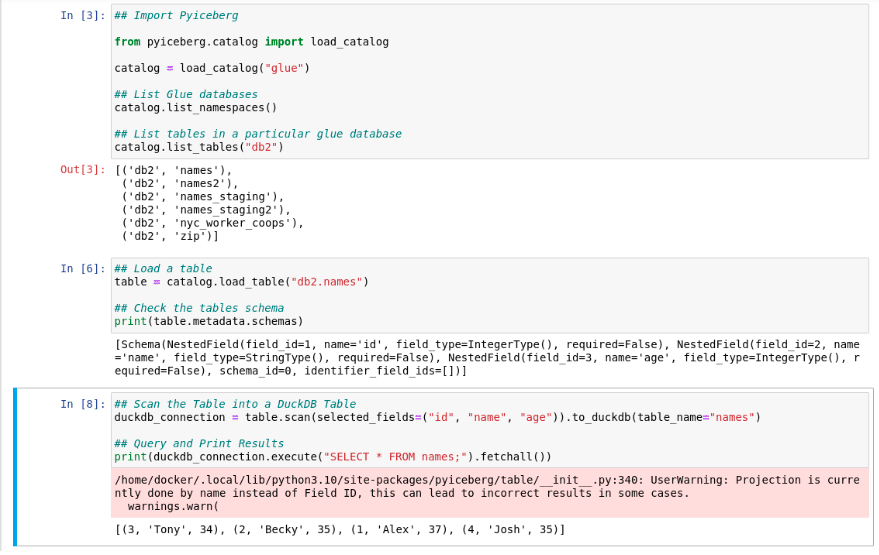
## Import Pyiceberg

from pyiceberg.catalog import load_catalog

catalog = load_catalog("glue")

## List Glue databases
catalog.list_namespaces()

## List tables in a particular glue database
catalog.list_tables("db2")

## Load a table
table = catalog.load_table("db2.names")

## Check the tables schema
print(table.metadata.schemas)

## Scan the Table into a DuckDB Table
duckdb_connection = table.scan(selected_fields=("id", "name", "age")).to_duckdb(table_name="names")

## Query and Print Results
print(duckdb_connection.execute("SELECT * FROM names;").fetchall())
To see the results from running this script to scan tables created with Spark and Dremio, here you go:
As a side note, you can also configure the catalog using kwargs like so:
Apache Iceberg has a wide Python footprint to allow you to do the work you need to do. Whether you use pySpark, ODBC/Arrow to send SQL to engines like Dremio or use pyIceberg to do local scans of your table with DuckDB, Iceberg has a lot to offer data practitioners who love writing Python.
Try Dremio Cloud free for 30 days
Deploy agentic analytics directly on Apache Iceberg data with no pipelines and no added overhead.
Intro to Dremio, Nessie, and Apache Iceberg on Your Laptop
We're always looking for ways to better handle and save money on our data. That's why the "data lakehouse" is becoming so popular. It offers a mix of the flexibility of data lakes and the ease of use and performance of data warehouses. The goal? Make data handling easier and cheaper. So, how do we […]
Aug 16, 2023·Dremio Blog: News Highlights
5 Use Cases for the Dremio Lakehouse
With its capabilities in on-prem to cloud migration, data warehouse offload, data virtualization, upgrading data lakes and lakehouses, and building customer-facing analytics applications, Dremio provides the tools and functionalities to streamline operations and unlock the full potential of data assets.
Aug 31, 2023·Dremio Blog: News Highlights
Dremio Arctic is Now Your Data Lakehouse Catalog in Dremio Cloud
Dremio Arctic bring new features to Dremio Cloud, including Apache Iceberg table optimization and Data as Code.