The article discusses ingestion of data into Apache Iceberg using various Python tools: PyIceberg, PyArrow, Bauplan, Daft, SpiceAI, DuckDB, and PySpark.
It explains how to connect these tools to a Dremio Catalog using bearer tokens for secure access and vended credentials for easy integration.
Ingestion follows a consistent pattern: read, shape, and write data into Iceberg tables while leveraging clean snapshots and metadata management.
The article provides an end-to-end example showcasing how to ingest a CSV into Iceberg using PyIceberg and a Dremio Catalog.
Overall, it emphasizes the flexibility of Iceberg for managing data in lakehouses with simple and clean pipeline setups.
Apache Iceberg gives teams a simple way to manage data in a lakehouse. It adds clear tables, strong guarantees, and predictable performance. Python gives engineers an easy way to collect, clean, and load data from many sources. When you combine both, you get a flexible path to build reliable pipelines without heavy infrastructure.
This blog shows how to ingest data into Iceberg using four Python tools: PyIceberg, PyArrow, Bauplan, PySpark, SpiceAI, Daft, and more. Each tool handles data differently. Some tools work well for small scripts. Others scale across large files or full pipelines. All of them can write data into Iceberg when connected to a proper catalog.
The examples in this blog use Dremio Catalog. It uses the Apache Iceberg REST Catalog interface, bearer-token access, and short-lived credential vending for storage. These features make the catalog easy to connect and safe to use in production. Later sections will cover the details, but the main idea is simple: authenticate with a token, point your client at the catalog URL, and the system handles the rest.
By the end of this guide, you will know how each Python tool works, how they differ, and how to choose the right approach for your next ingestion job.
Try Dremio’s Interactive Demo
Explore this interactive demo and see how Dremio's Intelligent Lakehouse enables Agentic AI
How Ingestion Works in an Iceberg Lakehouse
Ingestion in an Iceberg lakehouse follows a clear pattern. You load data from a source, shape it into a table-like form, and write it into an Iceberg table. Iceberg manages files, metadata, and version history. This design keeps pipelines predictable and easy to debug.
An Iceberg table has two parts. The first part is the data itself, stored as Parquet files in object storage. The second part is the metadata, stored as JSON. The metadata tracks the schema, partition rules, snapshots, and file changes. Every write creates a new snapshot. This gives you time travel, rollback, and consistent reads.
Ingestion tools interact with the Iceberg table through a catalog. The catalog provides a namespace, a location for metadata, and a way to look up tables. A Dremio Catalog uses the Apache Iceberg REST Catalog API for all table operations. Clients send requests with a bearer token, and the catalog handles the rest. If credential vending is enabled, the catalog also returns short-lived storage credentials, so you do not need to store cloud keys in your code.
Once a client connects to the catalog, ingestion becomes simple. Create a table if it does not exist. Load your data into memory. Write the data into the table. Iceberg handles the file layout and the atomic commit. After the write finishes, any engine connected to the same catalog, including Dremio, can read the new snapshot.
This workflow looks the same no matter how large the data becomes. That is the advantage of Iceberg. The tools you choose may change, but the ingestion pattern stays stable across all stages of growth.
Catalog Setup: Connecting Python Engines to a Dremio Iceberg Catalog
Every ingestion workflow begins with a catalog connection. The catalog stores table metadata, tracks snapshots, and gives each client a consistent view of the lakehouse. A Dremio Catalog follows the Iceberg REST specification so that most Python tools can use it without special plugins.
A Dremio Catalog uses four elements. The first is the REST endpoint. This is the URL clients use to read or write Iceberg metadata. The second is the OAuth2 token server. This server issues and refreshes tokens when needed. The third is a bearer token, which identifies the user or service. The fourth is an optional access-delegation header. This header tells the catalog to vend short-lived storage credentials so your code does not need cloud keys.
The warehouse value matches the name of your Dremio Cloud project. The token is a bearer token and should come from an environment variable or a secret store. Do not embed a real token in your code.
Most Python tools follow the same setup pattern. You pass the catalog URL. You attach the bearer token using a header or an auth field. You set the warehouse for your Dremio project. When vended credentials are enabled, the catalog supplies short-lived access keys so your client can write Parquet files without storing static cloud credentials.
The surrounding libraries vary in syntax, but they follow this same idea. PyIceberg loads a catalog from a configuration map. PyArrow adds the token to FlightSQL headers. Bauplan stores the connection in a client object. PySpark defines the REST catalog through session settings. Once set up, each tool handles table lookups, metadata reads, and atomic commits via the catalog.
Once the connection is established, ingestion becomes straightforward. You create tables, append data, and confirm new snapshots. The client does not manage metadata files. The catalog manages them and enforces consistency. This keeps your ingestion jobs simple, safe, and easy to repeat.
Data Sources You Can Ingest
You can load data into Iceberg from many places. The source does not change the core workflow. You read the data into memory, shape it into a table-like structure, and write it to an Iceberg table via the catalog. The tools you choose only change how these steps run.
Files are the most common source. CSV, JSON, and Parquet files work well because they map cleanly to tabular structures. PyArrow reads these formats with little code. PySpark does the same a larger scale. Bauplan can scan entire folders of Parquet files and build an Iceberg table from them. Once the data sits in memory as an Arrow table or a DataFrame, you can write it into Iceberg.
APIs are another option. Many teams pull data from REST endpoints. You fetch the data, parse the JSON payload, and turn it into a local structure. PyArrow can convert Python lists and dictionaries into Arrow tables. That makes the data ready for Iceberg. If the source system supports Arrow Flight, the process becomes faster. You send a SQL query or command, receive an Arrow table, and write it into Iceberg with one more step.
Databases also feed Iceberg. You can run a direct extract using JDBC or ODBC. PySpark provides a simple path with spark.read.format("jdbc"). PyArrow and PyIceberg can write the results once they are in memory. For continuous feeds, you can use a CDC tool to stream changes into Parquet files. Bauplan and PyIceberg can then register those files as Iceberg tables or append them to an existing table.
All of these sources follow the same pattern. Load. Shape. Write. Iceberg handles layout, metadata, and commits. Dremio handles the catalog and the credential vending. Your code only focuses on the data.
Ingesting Data with PyIceberg
PyIceberg is the simplest way to write data to Iceberg with pure Python. It gives you direct control over catalogs, schemas, and snapshots. It works well for scripts, small ingestion jobs, and service-style pipelines.
PyIceberg follows a simple pattern. You connect to a catalog, create or load a table, and append data. The library uses PyArrow tables for data, which keeps the workflow clean and consistent.
1. Connect to the Dremio Catalog
You load the catalog using a config map. Here is an example with placeholder values:
The warehouse name matches your Dremio Cloud project.
The token should come from an environment variable, not from the code.
2. Create or Load a Table
You define a schema and create the table. If the table exists, you load it instead.
from pyiceberg.schema import Schema

from pyiceberg.types import IntegerType, StringType

schema = Schema(

    ("id", IntegerType()),

    ("name", StringType())

)

table_identifier = "demo.users"

# Create the table if it does not exist

table = catalog.create_table(

    table_identifier,

    schema=schema

)

If the table exists in the catalog, you can load it with:

table = catalog.load_table(table_identifier)
3. Prepare Data as a PyArrow Table
PyIceberg writes Arrow tables. You convert your data like this:
import pyarrow as pa

records = [

    {"id": 1, "name": "Alice"},

    {"id": 2, "name": "Bob"}

]

arrow_table = pa.Table.from_pylist(records, schema=table.schema().as_arrow())
4. Append the Data
Once the data sits in an Arrow table, you append it:
table.append(arrow_table)
PyIceberg writes the Parquet files, updates metadata, and creates a new snapshot. The commit is atomic. If something fails, the table stays unchanged.
5. Other Operations
PyIceberg also supports deletes and overwrites:
from pyiceberg.expressions import col

# Delete rows where id = 2

table.delete(col("id") == 2)

# Overwrite rows with id = 1

table.overwrite(

    arrow_table,

    overwrite_filter=col("id") == 1

)
These actions create new snapshots and keep the table consistent.
Summary
PyIceberg works best for small or moderate ingestion tasks. It does not distribute compute, but it gives you clear control, strong safety, and simple code. If you need heavier transformations or parallel execution, PySpark or Bauplan may be a better fit.
Ingesting Data with PyArrow & Dremio
PyArrow gives you fast, columnar data handling in Python. It reads files, parses API payloads, and moves data between systems. PyArrow does not write to Iceberg by itself, but it prepares the data that Iceberg needs. It also connects to Dremio through Arrow FlightSQL, which lets you run SQL that writes into Iceberg tables using the Dremio Query Engine for scalable capacity.
The workflow is simple. You read data into an Arrow table. You connect to Dremio with a bearer token. You run SQL that creates or updates an Iceberg table. PyArrow handles the data transfer, and Dremio handles the commit.
1. Read Data into an Arrow Table
You can load CSV, JSON, or Parquet files.
import pyarrow as pa

import pyarrow.csv as csv

import pyarrow.parquet as pq

# CSV example

table = csv.read_csv("data/users.csv")

# Parquet example

# table = pq.read_table("data/users.parquet")

You can also build an Arrow table from Python data.

records = [

    {"id": 1, "name": "Alice"},

    {"id": 2, "name": "Bob"}

]

table = pa.Table.from_pylist(records)
2. Connect to Dremio Using FlightSQL
You connect with the Dremio Flight endpoint and a bearer token.
For larger datasets, you prepare batches in Python and load them with bulk insert patterns or temporary staging tables. The core idea stays the same: PyArrow sends the SQL, Dremio writes the data into Iceberg.
Ingesting Data with Bauplan
Bauplan is a Python-native lakehouse platform that writes and versions Apache Iceberg tables directly on object storage, while exposing those tables through a standard Iceberg REST catalog. It provides a managed execution environment for Python models and ingestion jobs, and applies Git-style semantics to data: branches, commits, and merges are first-class operations. Every ingestion or transformation produces an explicit, versioned Iceberg snapshot, which makes changes auditable, reversible, and safe to promote across environments.
With Bauplan, you can create Iceberg tables from existing Parquet files, append new data incrementally, or materialize the output of Python models as managed tables. All operations run against an explicit branch, so development and validation happen in isolation before merging into main. Once written, the tables are immediately queryable by external engines like Dremio through Bauplan’s Iceberg REST catalog, without copying data or maintaining separate metadata systems.
1. Connect Bauplan to Dremio catalog
Before you run any ingestion code, do a one-time setup so Bauplan can write Iceberg and Dremio can discover/query it. On the Bauplan side, your script just needs to authenticate (typically by exporting BAUPLAN_API_KEY, selecting a BAUPLAN_PROFILE, or using ~/.bauplan/config.yml ), which is what the Bauplan client will pick up automatically.
On the Dremio side, add a new Iceberg REST Catalog source that points to Bauplan’s Iceberg REST endpoint (https://api.use1.aprod.bauplanlabs.com/iceberg) and configure it to send Authorization: Bearer <token> using a Bauplan API key (ideally from a read-only Bauplan user).
Because Bauplan stores Iceberg metadata + Parquet data directly in your object store, Dremio must also be able to read that same storage location using its own S3/Azure credentials (Bauplan does not proxy storage access).
Dremio enables “Use vended credentials” by default for Iceberg REST catalogs; if the catalog supports credential vending, Dremio can query storage without additional configuration. If the catalog does not vend credentials, disable this option and provide S3/Azure storage authentication under Advanced Options so Dremio can read the table files directly from your bucket.
If you want Dremio to browse a data branch different than main , register a separate Dremio source pointing at the branch-scoped catalog endpoint (for example .../iceberg/<your_username>.<branch_name>). Once this is configured, Dremio will automatically see Bauplan namespaces/tables via the REST catalog (no manual refresh workflow).
2. Create an Iceberg Table from Parquet Files
If your data already lives in Parquet files, Bauplan can create a table and infer the schema with two calls.
import bauplan

client = bauplan.Client()

client.create_table(table="demo.taxi", search_uri="s3://my-bucket/nyc_taxi/*.parquet", branch="branch_name", replace=True)
print(f"\n 🧊🧊 New Iceberg table created \n")
Bauplan scans the Parquet files, builds the schema, creates the table, and registers the metadata. Those tables can now become visible in Dremio.
3. Import External Files into an Existing Table
You can append new Parquet files to an Iceberg table.
import bauplan

client = bauplan.Client()

client.import_data(table="demo.taxi", search_uri="s3://my-bucket/nyc_taxi/*.parquet", branch="branch_name",)
print(f"\n 🧊🧊 Data imported in your new Iceberg table \n")
Bauplan writes new data files, updates the metadata, and commits a new snapshot.
4. Build Tables Using Python Models
You can also define a Python function and have Bauplan materialize the result as an Iceberg table.
@bauplan.model(materialization_strategy="REPLACE")
@bauplan.python("3.11", pip={"polars": "1.35.2"})
def my_parent(
    trips=bauplan.Model(
        name="demo.taxi",
        columns=[
            "pickup_datetime",
            "PULocationID",
            "DOLocationID",
            "trip_miles",
        ],
        filter="pickup_datetime >= '2023-03-01T00:00:00-05:00' AND pickup_datetime < '2023-06-01T00:00:00-05:00'",
    ),
    zones=bauplan.Model(
        name="demo.taxi_metadata",
        columns=[
            "LocationID",
            "Borough",
        ]
    ),
):
    import polars as pl

    # trips and zones are Arrow-backed convert them in Polars.
    trips_df = pl.from_arrow(trips)
    zones_df = pl.from_arrow(zones)

    # Join trips and zones.
    joined_df = trips_df.join(zones_df, left_on="DOLocationID", right_on="LocationID", how="inner")
    print("\n\n ❤️❤️ Bauplan + Dremio ❤️❤️\n\n")

    return joined_df.to_arrow()
Because of the flag materialization_strategy="REPLACE" running the model writes the returned DataFrame (which, under the hood, is automatically converted into an Arrow table) to the target Iceberg table. Bauplan handles the schema, Parquet files, and commit.
5. Work with Branches and Safe Changes
Because Bauplan uses a catalog based on the Nessie backend, you can branch your data:
import bauplan

def create_import_branch(branch_name: str) -> bool:
        client = bauplan.Client()
    if client.has_branch(branch_name):
        client.delete_branch(branch_name)
        print(f"Branch {branch_name} already exists, deleted it first...")

    client.create_branch(branch_name, from_ref="main")
    assert client.has_branch(branch_name), "Branch creation failed"
    print(f"🌿 Branch {branch_name} from main created!")

    return True
You then run your models or imports on the branch. After validation, you merge the branch into main:
This pattern gives you a safe development path without risk to production tables.
Ingesting Data with PySpark
PySpark distributes work across many nodes, reads large files with ease, and connects to most data sources. PySpark also has full Iceberg support through the Iceberg Spark extensions. This makes it a reliable choice for ingestion, heavy transforms, and recurring pipelines.
PySpark works with the Dremio Catalog in two ways.
You can pass a bearer token directly. Or you can use Dremio’s Auth Manager. The Auth Manager is being contributed to the Iceberg project. It adds advanced logic for token exchange and token refresh. It is the safer choice in long-running Spark jobs because it handles expired tokens without breaking the job.
The workflow stays simple. You configure the Spark session. You read your data. You write it into an Iceberg table. Spark handles the files, metadata, and commit.
1. Configure Spark with the Basic Dremio Catalog Settings
This example uses a direct bearer token. Use placeholder values in your code:
This setup works well for short jobs or interactive use.
2. Configure Spark with the Dremio Auth Manager
For production jobs, long-running pipelines, or scheduled Spark clusters, the Auth Manager is a better option. It handles token refresh, token exchange, and expiration. The configuration looks like this:
spark.sql("""

CREATE TABLE IF NOT EXISTS dremio.demo.users (

    id INT,

    name STRING

) USING iceberg

""")
5. Write Data Into Iceberg
You can use SQL:
df.createOrReplaceTempView("staging_users")

spark.sql("""

INSERT INTO dremio.demo.users

SELECT id, name FROM staging_users

""")
Or use the DataFrame writer:
df.writeTo("dremio.demo.users").append()
6. Confirm the Write
spark.sql("SELECT * FROM dremio.demo.users").show()
Summary
PySpark handles large datasets, complex transforms, and distributed workloads. You can use a simple bearer-token setup for short jobs. For stable, long-running ingestion, the Dremio Auth Manager adds safe token exchange and refresh. Both configurations work with the Dremio Catalog and produce clean, atomic Iceberg snapshots.
If you want the next section, I can continue with the comparison table or best practices.
Ingesting Data with Daft
Daft is a Python DataFrame library built for scalable data processing. It integrates directly with Apache Iceberg via PyIceberg and supports writing data into Iceberg tables using a clean DataFrame-style API. It works well for Python ingestion jobs where you want PySpark-like power with simpler, native syntax.
Daft uses PyIceberg under the hood, so it supports REST catalog connections, including Dremio’s catalog. You configure your catalog using PyIceberg settings, then Daft uses that connection to write data into Iceberg.
1. Load a REST Catalog
Daft relies on PyIceberg’s catalog interface. You first define a REST catalog, with bearer token and access delegation:
This writes the data into Iceberg in append mode. You can also use "overwrite" mode to replace the table snapshot. After the write completes, Daft returns a DataFrame with the write metadata (e.g. file paths and row counts).
4. Output and Verification
You can query the written data using any Iceberg-compatible engine, including Dremio, Spark, or PyIceberg.
If needed, you can inspect the result of the write:
This confirms the number of rows and files written in the snapshot.
Limitations
Daft supports append and overwrite modes only.
Upserts, deletes, and schema evolution must be handled through PyIceberg or another tool.
Partitioning and table creation require using PyIceberg directly, then writing data with Daft.
Summary
Daft is a DataFrame engine that supports native writes to Iceberg through PyIceberg. It works well when you want readable code, fast local execution, and Iceberg output. If you're already using PyIceberg, Daft can simplify the ingestion layer without giving up control.
Ingesting Data with SpiceAI
Spice.ai is a query engine and data runtime built for analytics and time-series applications. It supports SQL-based ingestion and can write data into Apache Iceberg tables using standard INSERT INTO statements. The platform is built for declarative pipelines, so ingestion is expressed as part of a Spicepod configuration and executed by the runtime.
Spice connects to Iceberg through its built-in connectors. It supports REST catalogs, bearer tokens, and OAuth2. Once configured, it can insert data into Iceberg tables using SQL, either from static values or from other sources like APIs and cloud storage.
1. Define the Catalog in a Spicepod
You describe the Iceberg connection in a YAML file (typically spicepod.yaml). Here is a sample config:
Tokens are pulled from the secrets system, not hardcoded.
2. Use SQL to Insert Into Iceberg
Spice allows SQL-based ingestion. For example:
INSERT INTO demo.my_table (id, name)

VALUES (1, 'Alice'), (2, 'Bob');

You can also ingest from another dataset or API:

INSERT INTO demo.my_table

SELECT id, name FROM another_dataset;
Spice runs these SQL commands as part of your pipeline or on-demand.
3. Run the Ingestion Job
You can run the job from the CLI or from Python using the spicepy SDK:
This sends the SQL to the Spice runtime, which performs the write into Iceberg.
4. Authentication and Catalog Support
Spice connects to Iceberg REST catalogs, including:
Dremio
AWS Glue
Custom REST endpoints
It supports:
Bearer token authentication
OAuth2 token exchange
Secrets management for tokens
This makes it production-safe and easy to run without exposing credentials.
Limitations
Iceberg writes are currently append-only.
No support for UPDATE, DELETE, or MERGE.
Schema evolution is possible but must be managed outside the SQL layer.
Requires running a Spice runtime (local or hosted).
Summary
SpiceAI is a good option when you want SQL-driven ingestion into Iceberg. It supports REST catalogs and token-based auth out of the box. It’s especially useful when building pipelines declaratively or integrating with time-series or cloud-native sources.
Ingesting Data with DuckDB
DuckDB is an embedded SQL engine designed for analytics. It supports reading and writing to Apache Iceberg tables using its built-in iceberg extension. Once the extension is loaded, you can attach a REST catalog, authenticate using secrets, and write data using standard SQL.
DuckDB works well for small-to-medium ingestion jobs where you want fast, in-process execution and full SQL control. It also runs in Python, so you can embed ingestion logic directly into your scripts.
1. Load the Iceberg Extension in SQL
DuckDB includes Iceberg support as an extension. You need to load it before use:
INSTALL 'iceberg';

LOAD 'iceberg';

# You also need httpfs if you’re connecting to a REST catalog:

LOAD httpfs;
2. Authenticate with a REST Catalog (e.g., Dremio)
You use DuckDB’s CREATE SECRET feature to store OAuth or bearer token credentials:
Then attach the catalog using the REST endpoint and secret:
ATTACH 'dremio_catalog' AS dremio (
TYPE iceberg,
ENDPOINT 'https://catalog.dremio.cloud/api/iceberg',
SECRET dremio_secret
);
This allows DuckDB to read and write to Iceberg tables managed by Dremio.
3. Create and Insert Into an Iceberg Table
Once attached, you create and populate tables like any SQL database:
CREATE TABLE dremio.demo.users (
id INTEGER,
name VARCHAR
);
INSERT INTO dremio.demo.users VALUES (1, 'Alice'), (2, 'Bob');
DuckDB writes the data as Parquet files and updates Iceberg metadata using the REST catalog.
4. Use DuckDB from Python
You can execute all of the above directly in Python:
import duckdb
con = duckdb.connect()
con.execute("INSTALL 'iceberg';")
con.execute("LOAD 'iceberg';")
con.execute("LOAD httpfs;")
con.execute("""
CREATE SECRET dremio_secret (

  TYPE iceberg,

  CLIENT_ID 'dremio',

  CLIENT_SECRET 'YOUR_TOKEN_HERE',

  OAUTH2_SERVER_URI 'https://login.dremio.cloud/oauth/token'

);
""")
con.execute("""
ATTACH 'dremio_catalog' AS dremio (

  TYPE iceberg,

  ENDPOINT 'https://catalog.dremio.cloud/api/iceberg',

  SECRET dremio_secret

);
""")
con.execute("INSERT INTO dremio.demo.users VALUES (3, 'Carol');")
This makes DuckDB a useful embedded tool for Python ingestion jobs that need SQL control and REST catalog support.
Limitations
DuckDB only supports append-mode writes to Iceberg.
No UPDATE, DELETE, or MERGE support as of now.
Schema evolution must be handled externally.
Requires explicit loading of extensions and secrets setup.
Summary
DuckDB is a lightweight SQL engine with native Iceberg write support. It connects to REST catalogs like Dremio, handles authentication, and executes INSERT statements with low overhead.
End-to-End Example: Ingest CSV into Iceberg with PyIceberg and Dremio Catalog
This example walks through a full ingestion pipeline: read a CSV file, convert it into a PyArrow table, write it into an Iceberg table using PyIceberg, and verify the results, all using a Dremio REST catalog with bearer token authentication.
1. Set Up the Catalog
Configure the catalog using your Dremio project name and personal access token:
Make sure the token is stored in an environment variable or a secrets manager in real use.
2. Read and Convert the CSV File
Use PyArrow to read the file and prepare it for ingestion:
import pyarrow.csv as csv

arrow_table = csv.read_csv("users.csv")

You can inspect the schema and rows:

print(arrow_table.schema)

print(arrow_table.to_pylist())
3. Create or Load the Iceberg Table
Create the table with the schema derived from the Arrow table:
This creates a new snapshot, writes Parquet files, and commits the metadata.
5. Verify the Write
You can scan the table with PyIceberg:
for row in table.scan():

    print(row)
Or connect through Dremio or Spark and run:
SELECT * FROM demo.users;
The new data will be immediately visible.
What This Shows
Full use of Dremio REST catalog with bearer token
Ingestion of local file into Iceberg
Clean table creation and append
Safe and atomic snapshot commit
You can adapt this to any data source, APIs, databases, or transformed pipelines, by converting the result into an Arrow table and writing through PyIceberg or another compatible tool.
Conclusion
Apache Iceberg gives you a reliable, open standard for managing data in the lakehouse. With the right tools, you can build ingestion pipelines entirely in Python, no JVM, no lock-in, and no extra complexity.
In this post, you explored how to ingest data into Iceberg using:
PyIceberg
PyArrow with Dremio
Bauplan
Daft
SpiceAI
DuckDB
PySpark
You also saw how to connect each tool to a REST catalog like Dremio Catalog, using bearer tokens and vended credentials to keep your pipelines secure and portable. You reviewed best practices for schema control, batch writing, and safe snapshot management, and walked through an end-to-end example that you can adapt to any data source.
Every tool you use can write clean, atomic data into Iceberg. Once there, the table is immediately queryable by Dremio or any other engine that speaks Iceberg. That’s the power of open formats and shared catalogs: one standard, many tools, zero friction.
Choose the tool that fits your workload. Stay close to the data. Keep your pipeline simple. And let Iceberg handle the rest.
Intro to Dremio, Nessie, and Apache Iceberg on Your Laptop
We're always looking for ways to better handle and save money on our data. That's why the "data lakehouse" is becoming so popular. It offers a mix of the flexibility of data lakes and the ease of use and performance of data warehouses. The goal? Make data handling easier and cheaper. So, how do we […]
Aug 16, 2023·Dremio Blog: News Highlights
5 Use Cases for the Dremio Lakehouse
With its capabilities in on-prem to cloud migration, data warehouse offload, data virtualization, upgrading data lakes and lakehouses, and building customer-facing analytics applications, Dremio provides the tools and functionalities to streamline operations and unlock the full potential of data assets.
Aug 31, 2023·Dremio Blog: News Highlights
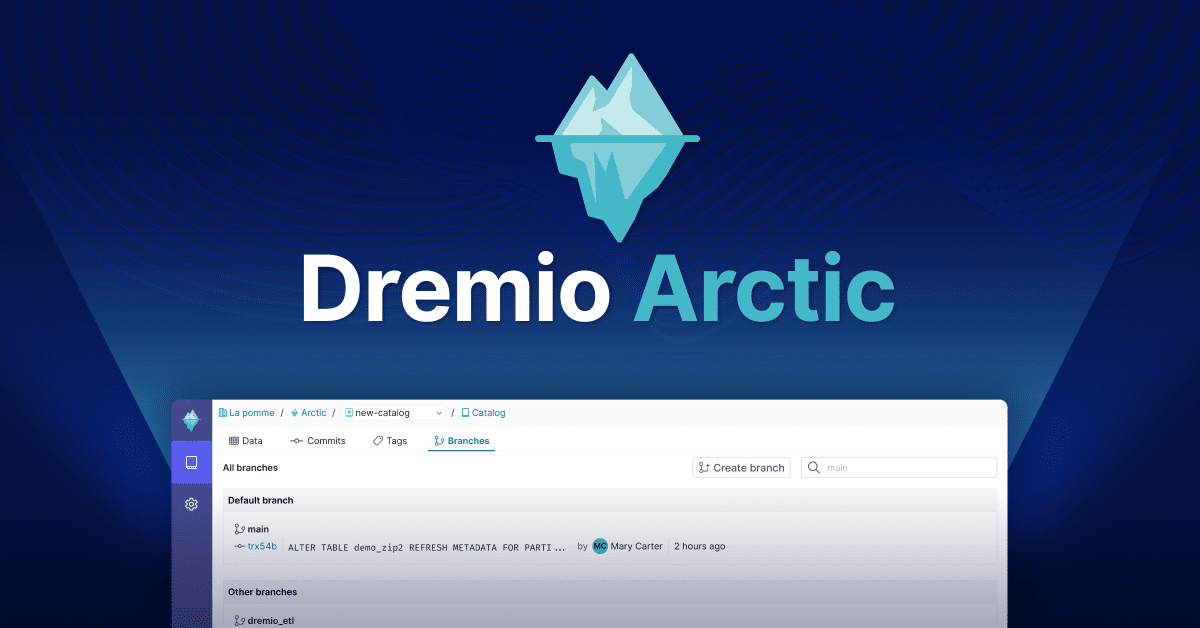
Dremio Arctic is Now Your Data Lakehouse Catalog in Dremio Cloud
Dremio Arctic bring new features to Dremio Cloud, including Apache Iceberg table optimization and Data as Code.